 3DKLYN
START HERE
Choose one way to generate.
You do not need to connect every provider. Install 3DKLYN once, then choose local or cloud.
On a phone, tap any setup picture to open it at full size.
Install ComfyUI and download model files. Your computer runs the generation; its hardware must be suitable for the model.
Set up ComfyUI → ROUTE B · ON A PROVIDER’S SERVERSCloud APICreate a provider API key and check that provider’s API billing. You do not install the cloud model on your PC.
Choose an API provider →STEP 1 · BOTH ROUTES
Install the plugin once.
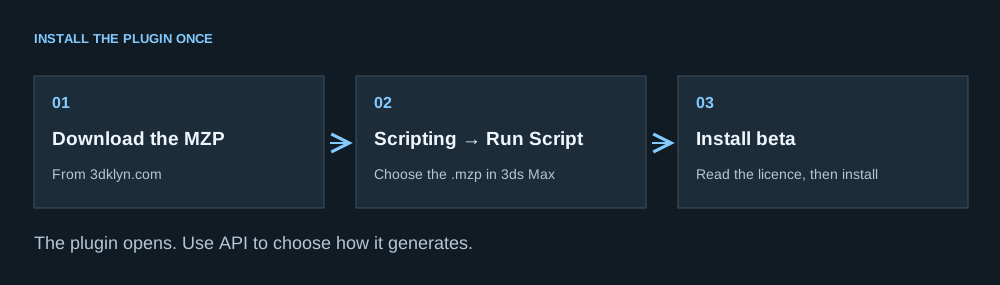
- Download the MZP from this website. See Build and test status for the published checksum and the scope of testing. The archive is unsigned; compare against the official website, not a checksum supplied only with an unknown copy.
- Save your scene and open a fresh 3ds Max session. Choose Scripting → Run Script, then select the downloaded
.mzpfile. - Read the beta terms and click Install beta. The plugin opens after installation. Adding a toolbar button is optional.
- In the plugin, click API in the top bar. This opens 3DKLYN · API connections.
Open-KLYN-Beta.ms in this version’s installation folder.STEP 2A · LOCAL GENERATION
Connect ComfyUI on your PC.
ComfyUI runs separately from 3ds Max. 3DKLYN sends a job to it and receives the finished image. For your first connection test, use the built-in SDXL profile.
Install and start ComfyUI.
For a Windows portable installation, follow the official ComfyUI portable guide and download the package for your hardware. Extract it into a folder you can find again, for example C:\AI\.
For the NVIDIA portable package, run run_nvidia_gpu.bat. Wait for startup to finish, then open the browser address printed in the console. Keep that console window open while generating.
Using ComfyUI Desktop instead? Choose a local installation during setup and launch it from its own app. Use the server address for that running installation; it may differ from the portable example.
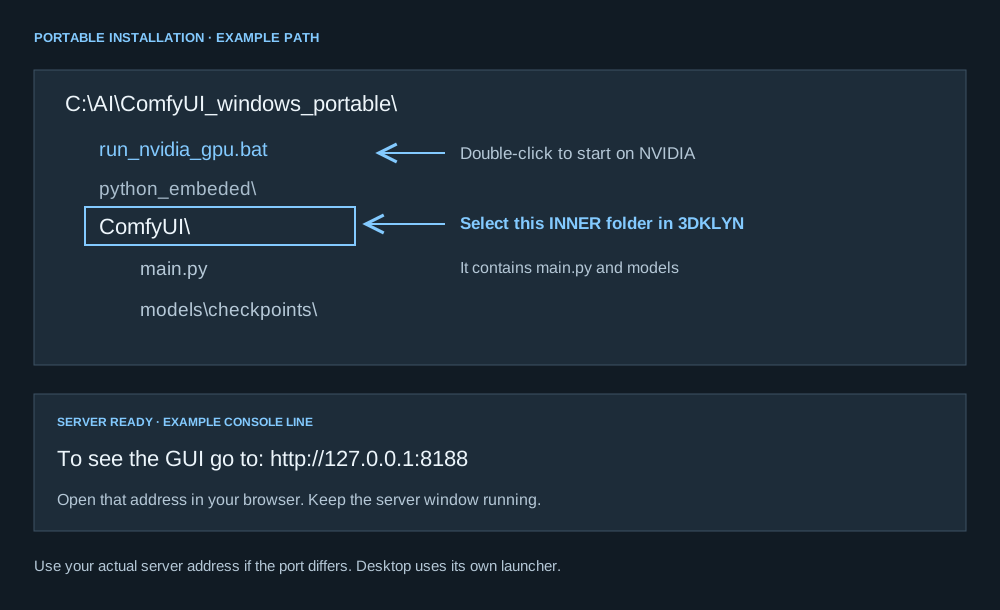
models.Save the server address in 3DKLYN.
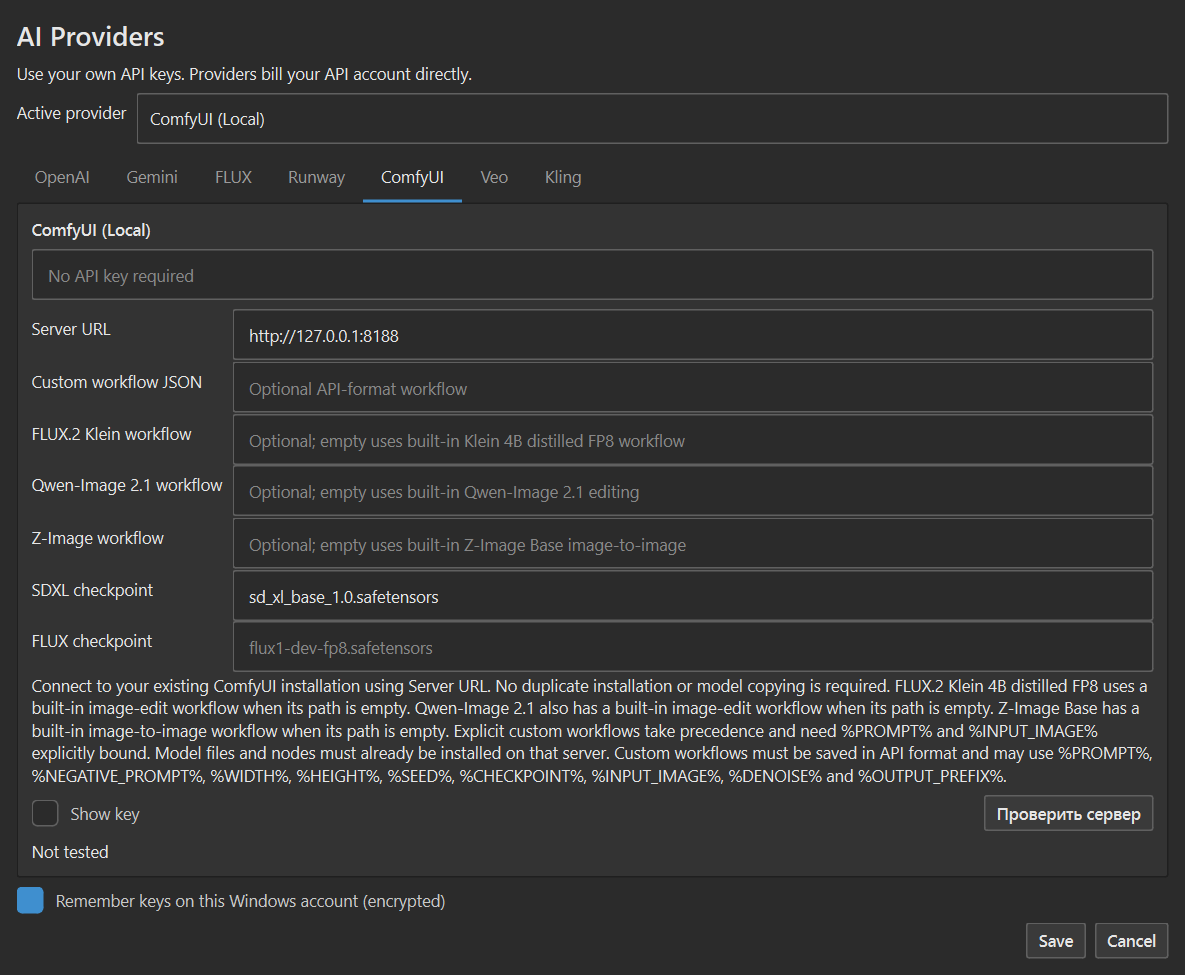
- Open API → ComfyUI.
- Set Active provider to ComfyUI (Local).
- In Server URL, enter the address of the running server. The portable example is
http://127.0.0.1:8188. Keephttp://; do not paste a Windows folder path here. - For this SDXL test, leave the custom workflow fields empty. Keep the SDXL checkpoint as
sd_xl_base_1.0.safetensors. - Click Save, reopen API → ComfyUI, then click Check server (Проверить сервер in this build).
Save before checking: the server check in this build uses the saved URL.
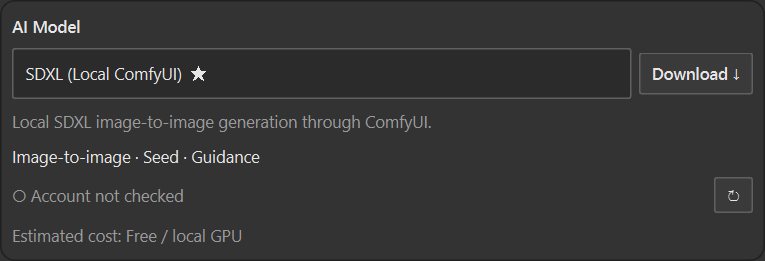
Choose SDXL and open Download.
Back in the main Image tab, select Provider → ComfyUI (Local). Under AI Model, choose SDXL (Local ComfyUI) and click Download ↓.
Do not choose Custom workflow (JSON) for this first test. It is a way to load a workflow you prepared yourself, not a model that the plugin can download.
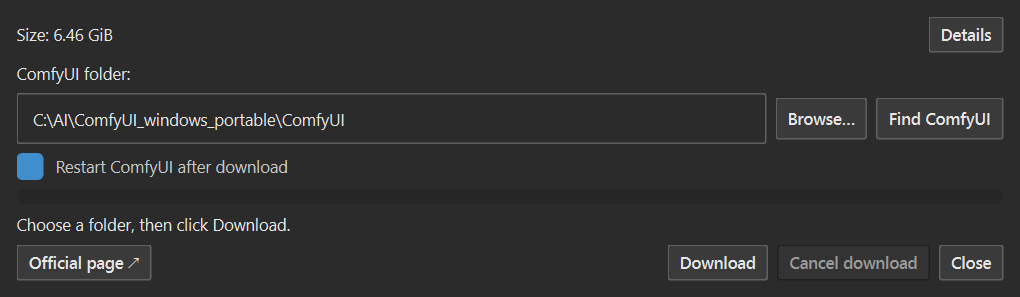
Download into the correct ComfyUI folder.
- Click Browse… or Find ComfyUI.
- Select the folder containing both
main.pyandmodels. In the portable example this isC:\AI\ComfyUI_windows_portable\ComfyUI. Select the installation you actually started. - Read the model’s separate licence through Official page ↗. Click Download and wait for completion.
- Leave Restart ComfyUI after download enabled for a recognized local portable/Python installation. For Desktop, or if automatic restart is unavailable, restart ComfyUI from its own launcher after the download.
The SDXL example is placed in models\checkpoints\sd_xl_base_1.0.safetensors. Do not select python_embeded or the models subfolder as the installation folder.
Check the server again, then generate.
Wait until ComfyUI is ready after its restart. Reopen API → ComfyUI and check the server again. Keep SDXL (Local ComfyUI) selected, then follow Your first image below.
The plugin can start a recognized local portable/Python installation through Start ComfyUI when available. Otherwise launch ComfyUI yourself. Generating requires the server to be running.
STEP 2B · CLOUD GENERATION
Connect an API key.
An API key lets 3DKLYN use your account with the selected provider. The provider handles model access, usage limits and payment. No cloud model download or local ComfyUI installation is needed for this route.
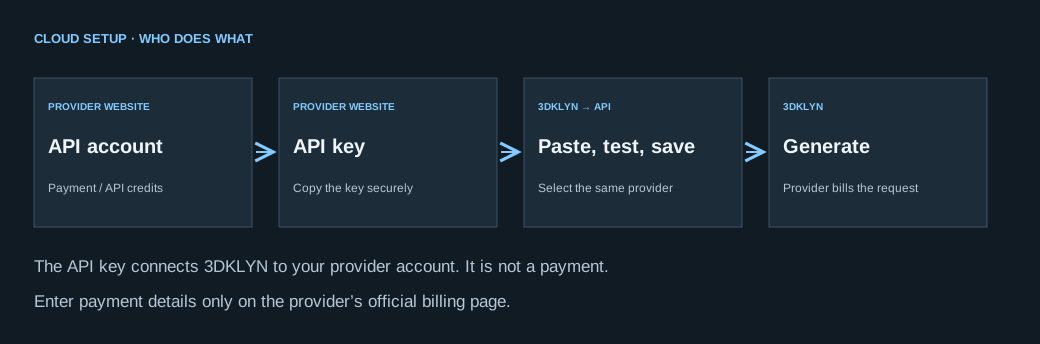
- Choose one provider below. Open its official API console, create a key and check that API billing is enabled for the same account or project.
- In 3DKLYN, click API and open the matching tab. Paste the key into Paste API key. Paste only the key, without quotes, spaces or
Bearer. - Click Test Connection, read the result and click Save. Set Active provider for images. Veo and Kling are selected separately in the main Video tab.
- Try one generation, then check usage in the provider’s console before starting a queue or larger job.

OpenAI Images · OpenAI Platform API key
- Sign in to OpenAI Platform → API keys. Select the project you intend to use and create a secret API key. Copy it while it is displayed.
- Open API billing. Set up the payment or credits offered for your account. Check project permissions and usage limits. A ChatGPT subscription does not fund requests made with this API key.
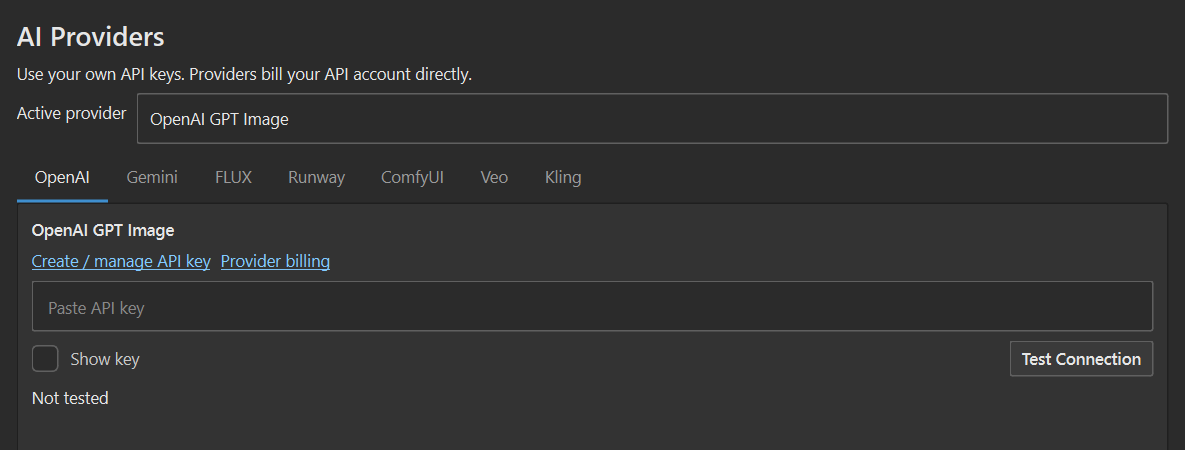
- In API → OpenAI, paste the key, click Test Connection, then Save.
- In the Image tab, choose OpenAI and an image model offered by the plugin. Generate one test image and check Platform usage.
Official API setupCurrent API pricingKey safety & spending controlsAPI billing vs ChatGPT authentication
Gemini Images · Google AI Studio key
- Open Google AI Studio → API keys. Create or select a key and note its Google Cloud project.
- In AI Studio, check billing for that same project. Use Set up billing when shown and complete the billing steps. If your account uses prepay, it needs an available balance.
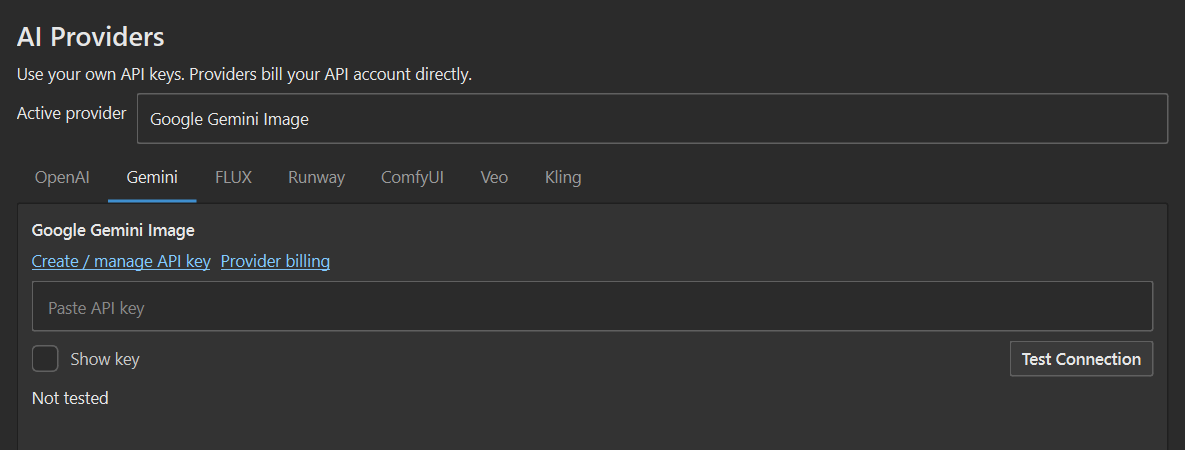
- In API → Gemini, paste the key, click Test Connection and Save.
- Choose Gemini and an image model in the Image tab. Check the model’s access, price and quota, then try one image.
Create an API keyBilling setupModel pricing & free/paid availability
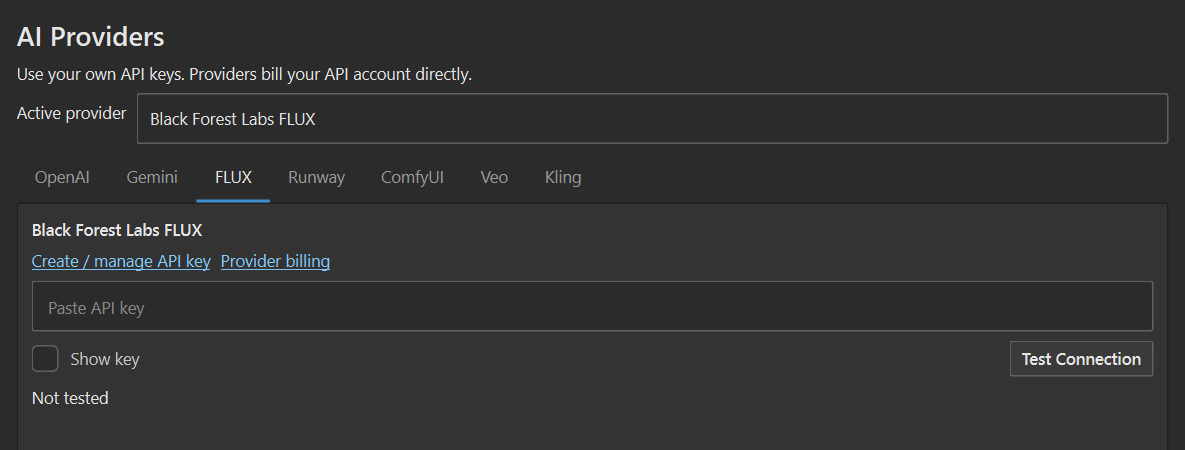
FLUX Images · Black Forest Labs API key
- Sign in to the Black Forest Labs dashboard and complete email confirmation if requested.
- Select your organization. Open API → Credits → Add Credits, choose an amount and review the checkout before paying.
- Select a project. Open API → Keys → Add Key. Copy the key when shown; the quick-start guide says it is only displayed once.
- In API → FLUX, paste it, click Test Connection and Save. Choose FLUX in the Image tab and a model offered by the plugin, then try one generation.
Runway Images / video · Runway Developer project
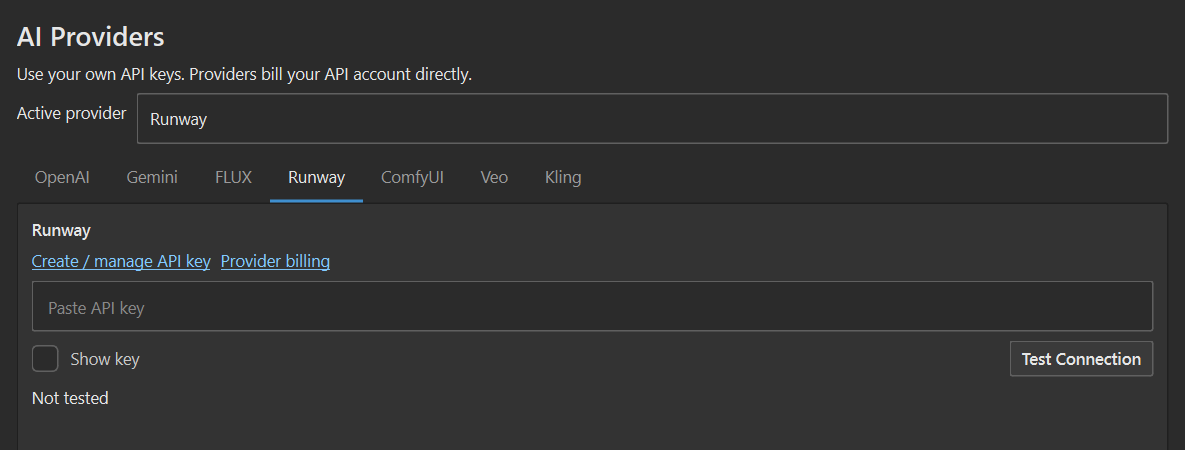
- Open the Runway Developer portal and create or select a Developer project.
- Open that project’s API Keys tab, create a key and copy it while displayed.
- Open the project’s billing tab and check its API credit balance. Add credits through the provider’s checkout if needed. Verify the Developer project balance even if you already pay for the Runway web app.
- In API → Runway, paste the key, click Test Connection and Save. Choose Runway in the relevant Image or Video provider selector.
Veo Video · Google AI Studio connection
- For the default connection, use a Google AI Studio API key. Check billing, model access and video quota on the key’s project, as in the Gemini steps above.
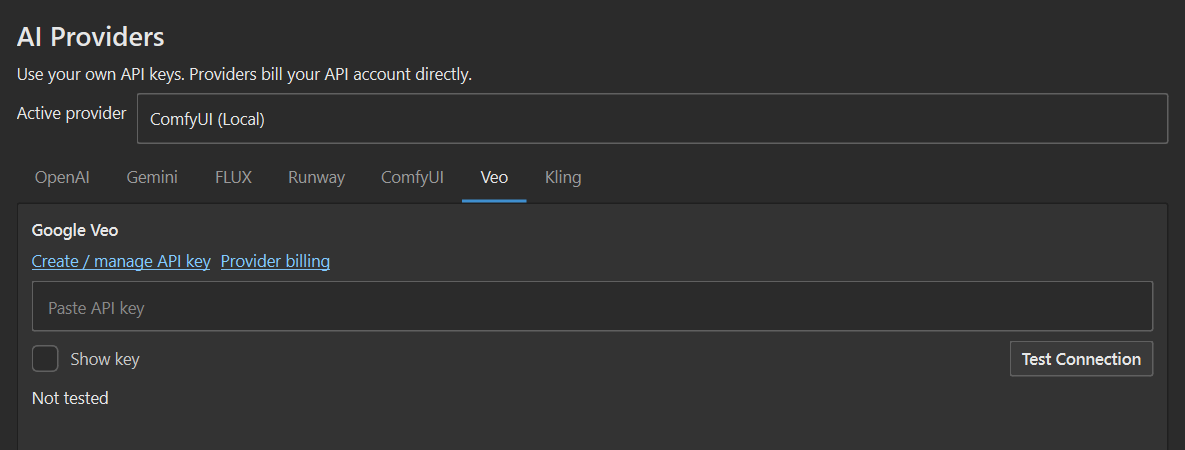
- Open API → Veo and use the AI Studio connection. Paste the key, click Test Connection and Save.
- If you use the same project key for Gemini and Veo, save it in both tabs separately. Saving the Gemini tab does not fill in the Veo tab.
- Open the main Video tab and choose Veo. Select a supported model and settings, add a source image and make one short test.
Official Veo API guideGoogle API billingCurrent model pricing
Kling Video · Kling Developer API key
- Open the Kling Developer platform. Check API access and the API resource packages available to your account.
- Open API Keys, create a new API key and copy it while displayed.
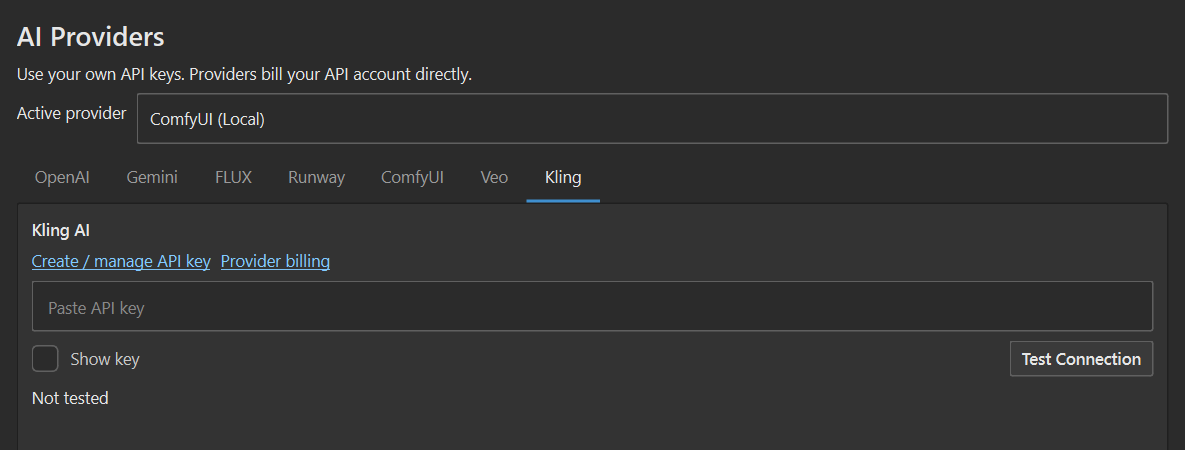
- In API → Kling, paste the single API key. This public build expects the API-key method, not a legacy AccessKey / SecretKey pair. Click Test Connection, then Save.
- In the main Video tab, choose Kling, add your source image and select a supported model and duration. Start one test only after checking API access and balance.
PAYMENT EXPLAINED
Who do I pay, and for what?
| What you use | Where payment happens | What to check |
|---|---|---|
| 3DKLYN personal betaPlugin installation and personal tests | No plugin payment or KLYN account required under the current beta licence. | Personal, non-commercial use. Read the licence. |
| Local ComfyUI modelsThe built-in local image route above | No cloud API bill for that local generation. Your own computer does the work. | Hardware, disk space, model licence and a running local server. A custom workflow using external services may have its own charges. |
| Cloud API modelsOpenAI, Gemini, FLUX, Runway, Veo, Kling | Directly in the provider’s API console, under its pricing and terms. | The correct account/project, model access, API balance, limits and usage. |
| Optional donationSupport for 3DKLYN | Separate from provider billing. | Does not add provider credits, unlock models or grant commercial beta rights. |
Before your first paid request
- Open the official billing link in your provider’s section above. Confirm that the account or project matches your API key.
- Follow the provider’s payment setup. Review the amount, currency, taxes and any recurring or automatic top-up option before confirming. Minimum top-ups and available payment methods can differ by account.
- Check usage limits or alerts where the provider offers them. Read how those controls work; do not assume every budget alert blocks further spending.
- Generate one small image, or one short video with supported settings. Check the charge or usage record in the provider’s console before submitting more.
STEP 3 · BOTH ROUTES
Generate, compare and save.
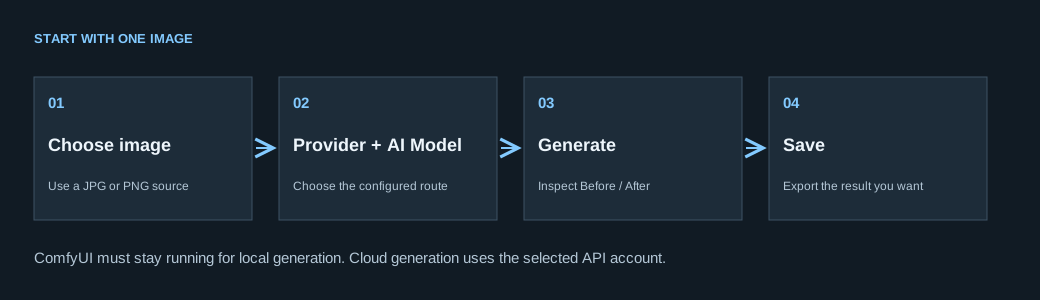
- Open the main Image tab. Under Source, choose Image file, then click Choose image. Select a test render or viewport capture that you are allowed to upload or process.
- Select your connected Provider and AI Model. For the local walkthrough, use ComfyUI (Local) → SDXL (Local ComfyUI).
- Enter a short instruction. Start with a modest image size supported by that model and generate one job before using the queue.
- Click Generate and wait for the result or error. For local generation, keep ComfyUI running. For cloud generation, the request can incur a provider charge.
- Inspect Before / After, Fit and zoom. Check the entire image, then click Save to export your result.
Example instruction — adjust it to your scene:
Create a realistic architectural visualization of this scene. Keep the camera angle, building layout and main composition. Add soft natural daylight, believable materials and subtle reflections. No text or logos.
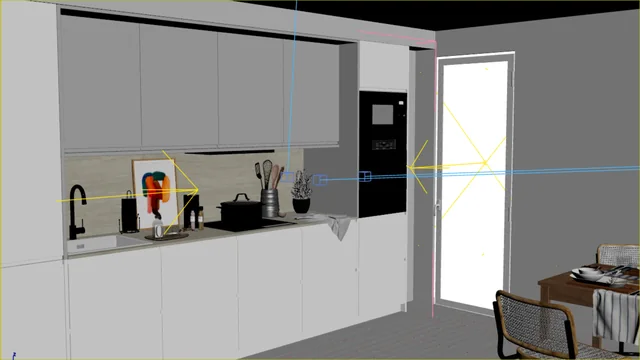

An existing published before/after example, not a new test made for this guide. Your result will vary. AI can change geometry and small details even when asked to preserve them; the image does not modify your 3D scene.
OPTIONAL NEXT STEP
Make your first video.
- Save a working Veo, Runway or Kling key in its API tab. Confirm the selected video model is available to your API account.
- Open the main Video tab. Choose a source image, then the video Provider and model. Choose a short duration and a supported size for your first test.
- Describe one simple movement, for example: “Slow camera push toward the building, gentle leaf movement, steady architecture, natural light.”
- Click Generate video. When ready, use Play video, inspect the clip and choose Save as….
Available durations, sizes and features depend on the selected provider/model. Some video options in the beta remain experimental. Read the displayed error before retrying; repeated cloud jobs may incur additional charges.
IF YOU GET STUCK
Match the message to the next step.
ComfyUI is not reachable / connection refused
Open ComfyUI on your PC and wait for startup. Check that its printed URL opens in a browser on the same PC. Copy that URL into API → ComfyUI → Server URL, click Save, reopen API and check the server again. Keep ComfyUI running. If using Desktop, start it from its own launcher. A Windows folder path is not a server URL.
Model / checkpoint not found
Check which ComfyUI installation is running. Download the selected model into that installation’s inner ComfyUI folder. For the SDXL example, confirm models\checkpoints\sd_xl_base_1.0.safetensors exists and matches the name in API settings. Wait for the download to finish, restart ComfyUI and retry one image.
Workflow needs setup / missing node
For a first test, select SDXL (Local ComfyUI) and leave custom JSON fields empty. Custom workflow (JSON) needs your own compatible API-format workflow and its models/nodes; it cannot be downloaded as a single model. For other profiles, check the model’s setup details and official workflow requirements.
CUDA out of memory / not enough video memory
Reduce image size or use a model that fits your hardware. Close competing GPU tasks, then retry one job after ComfyUI is ready. The model’s download size is disk usage, not a promise about required or available VRAM. If the local model still will not fit, choose a suitable lighter model or a cloud route.
401 / invalid API key
Confirm the provider matches the key: an OpenAI key does not belong in Gemini or FLUX. Paste the raw key without quotes or Bearer, test and save. Check whether the key has been revoked. If replacing it, create the new key only on the provider’s official console. Never post a key in support chat.
403 / permission denied / model unavailable
Check the account/project, key permissions, model access and provider availability for your region. A key may be valid but lack permission for the selected model. See the provider’s console and the full error; repeatedly pasting the same key will not grant missing access.
Insufficient credits / quota exceeded / 402 or 429
Read the error details. If it reports exhausted balance or billing quota, open that API account/project’s billing page and check payment, credits and spending controls. Waiting does not replenish credits. If it is a request-rate limit, stop the queue and wait as instructed by the provider before retrying. A successful connection test can still be followed by a billing or model-quota error.
Connection test passed, but generation fails
The test may not exercise the selected model or billing. Gemini’s check can list models without confirming image quota; Kling’s check in this build only verifies that the key field is not empty. Confirm model access and API balance, then submit one supported test request and read the returned error.
I need to cancel / the job seems stuck
Use the plugin’s Cancel control and wait for its status before retrying. Check the provider’s job or usage page for a cloud request. Cancellation may not undo a provider charge. Avoid submitting duplicate jobs while the original request is still processing.
Still stuck? Open support or email [email protected]. Include your Max version, plugin build, provider, model and the exact error. Help → Copy support info copies limited metadata locally; review it before sending. Remove keys, passwords and private image content from screenshots.
AFTER THE FIRST SUCCESSFUL TEST
Other models, workflows and updates.
Using another local model or a custom workflow
A named local profile needs its own required files and workflow dependencies. Review its setup details, licence and hardware requirements before downloading. A running SDXL setup does not mean every larger model will fit.
Custom workflow (JSON) expects a compatible API-format image graph with %PROMPT% and %INPUT_IMAGE% bindings. A normal editor workflow JSON may be a different format. Install its required models and nodes on ComfyUI and test the workflow there before connecting it to 3DKLYN. This option is for a prepared workflow, not the beginner download path.
Enhance, updates and removal
Enhance uses local SeedVR2 restoration through ComfyUI. Install its separate model files when prompted; your source is kept, but fine details may change.
Get updates manually from 3dklyn.com. Save work and restart Max before loading another build. The beta does not run an automatic updater. Keep the original MZP if you need its version’s removal controls. Removing this beta keeps UserData; model removal moves eligible files to the Windows Recycle Bin after confirmation.
Where settings and results are kept
The public personal beta uses %LOCALAPPDATA%\3DKLYN.PersonalBeta\UserData for its settings, optional encrypted keys, logs and outputs. Encrypted key storage belongs to the current Windows account. Cloud requests send their input to your selected provider under that provider’s terms; only use material you are allowed to process. See the plugin privacy notice.
CHECKED AGAINST THE PRODUCT AND OFFICIAL DOCUMENTATION
Sources & help.
Plugin labels and behavior were checked against the public MZP, version 1.34.27 / build 97. The pictures show that build’s actual dialogs rendered with empty credentials and sample settings; they are not screenshots of a real provider account or proof of a paid generation. Diagrams are explanatory examples. Provider consoles, prices and access rules can change; use the official links below for current account-specific steps.