
Example: a kitchen before and after Gemini
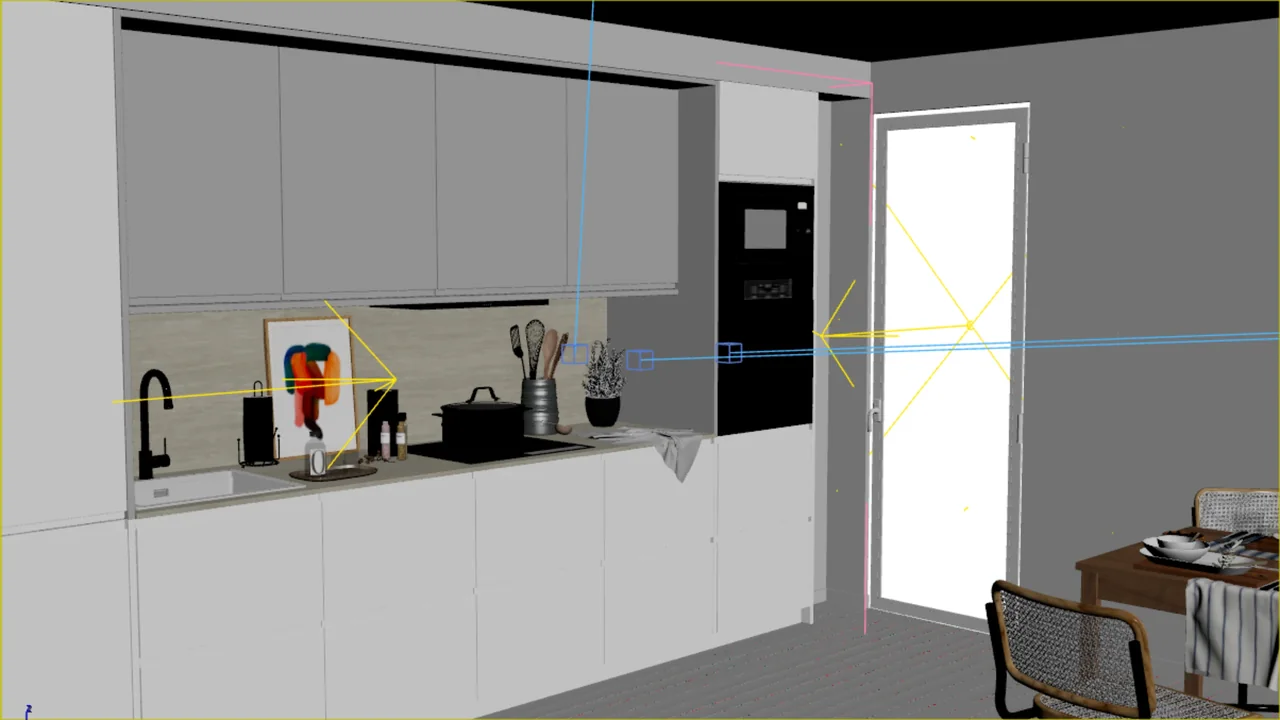
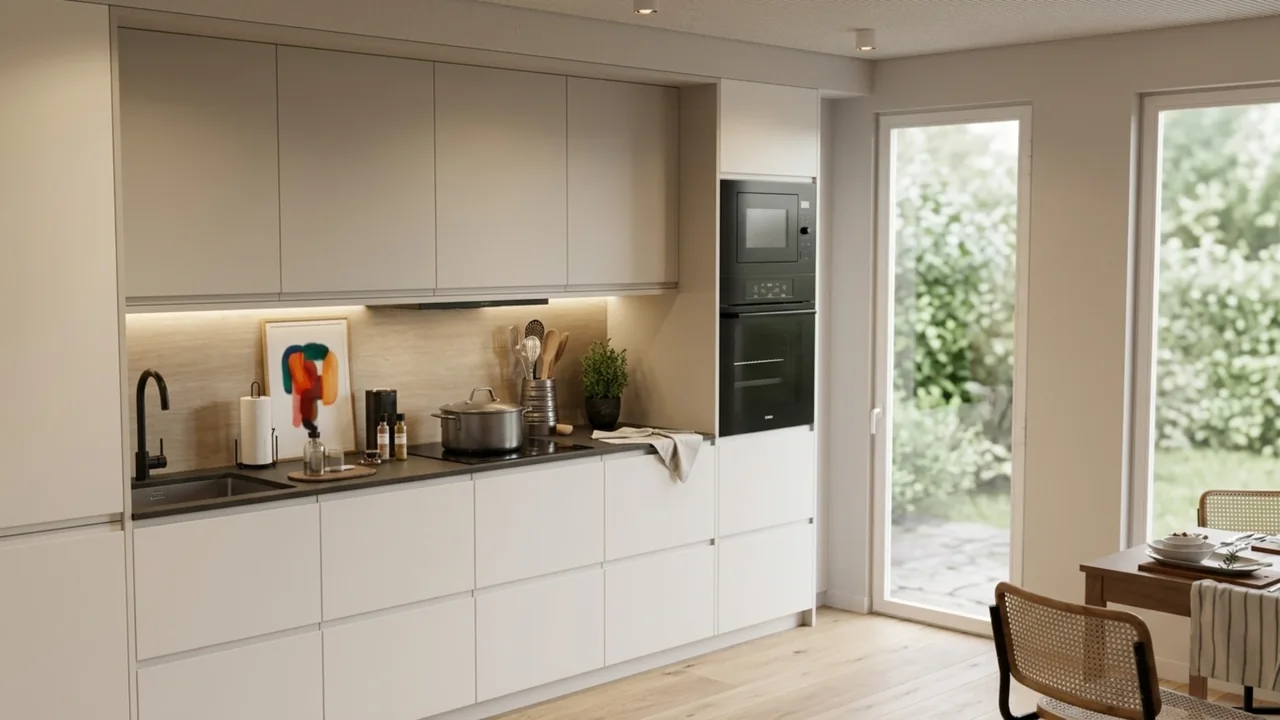
The first image is the viewport source; the second is the Gemini result. This is an existing KLYN example also shown on the home page. It demonstrates an image transformation, not the creation of a new 3D scene.
Prepare a source with the right viewpoint
Choose the composition before generating: frame boundaries, camera position and visible objects. If an important part of the room is missing from the source, a written instruction cannot supply accurate project information that the image does not contain.
- Check that the required windows, furniture and openings are visible.
- Remove distracting selections and helper overlays from the source image.
- Keep the source separately so you can compare variations against the same frame.
You can also use a finished render. A viewport can support early visual exploration; a more detailed source provides more visible information about materials and lighting.
Create a variation in KLYN
- Connect your own key through API and check model access. Follow the API setup guide.
- In Image, choose Camera viewport and use Capture camera. To open an existing file, choose Image file.
- Select the provider and model. Review the available settings and the provider’s pricing.
- Describe one change and click Generate.
- Compare the source and result with Before / After. Use Save to keep the version you choose.
A starting prompt for lighting exploration
Turn this kitchen viewport into an interior visualization with soft daylight. Keep the camera position, furniture layout, windows and doors. Do not add objects. Retain the main material colors.
This is a starting point for your own prompt, not the exact prompt used for the example above. Asking a model to preserve geometry does not guarantee that it will. Change one objective at a time so you can understand the differences between variations.
Check the result against the source
- Geometry: cabinet widths, panel counts, door positions and windows.
- Materials: colors, texture direction and boundaries between finishes.
- Details: handles, furniture legs, taps and small objects.
If the output departs from the design, do not present it as an accurate confirmation of that design. AI processing changes an image and does not replace checking the original scene.
Plugin access and cost
Download the personal beta MZP without KLYN registration or activation; use your own provider keys. Follow the current installation guide.
Cloud API usage is billed separately by the provider. The cost depends on the model and settings. Check the provider pricing before starting.