
Example: a still image and a video
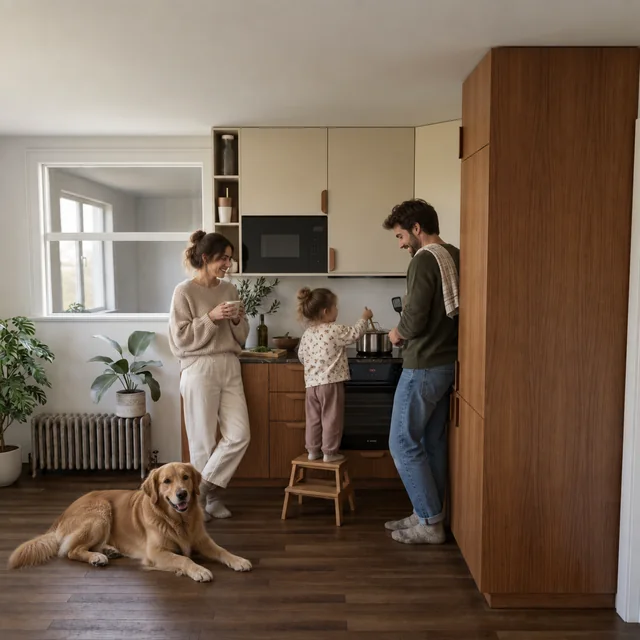
Below are a kitchen image featuring a family and an existing KLYN video example. Play the clip to compare its motion with the still frame. The video loads when you play it.
Start with an image you have checked
Use a frame whose composition, materials and lighting already work for your presentation. If an object or cabinet color needs correcting, edit the image before moving to video.
- Check straight lines, openings, furniture and reflections.
- Choose a composition that suits the intended presentation.
- If people appear in the frame, also inspect hands, faces and contact with objects.
Image-to-video is not a camera animation inside the original 3D scene. Areas that are absent from the source frame may be generated inaccurately.
Work through the Video tab
- Open API and connect your video provider. KLYN includes integrations for Kling, Veo and Runway; access to a particular model depends on the provider.
- Open Video and select the source image.
- Choose a model and the duration and resolution settings available for it. Models do not all offer the same settings.
- Describe the motion and check the provider’s request pricing.
- Click Generate video, wait for the result and watch the entire clip.
For basic key setup, follow the API connection guide. Do not send API keys to support.
Describe motion separately from the design
Locked camera. Subtle, natural movement of the people in the kitchen. Keep the source composition, furniture and lighting. No viewpoint changes and no new objects.
This is an example prompt to try, not the exact instruction used for the clip above. Begin with one type of motion. Changing the camera, lighting and character actions at once makes it harder to identify the source of an error.
Inspect more than the opening frame
Watch the beginning, middle and end, then pause where the most movement occurs. Look for changing furniture shapes, flickering textures, reflections, hand movement and additional objects.
You can reject an unsuitable output, but another request may incur another charge. After a timeout, check pending video tasks in KLYN first to avoid creating an unnecessary duplicate generation.
Cost and availability
Cloud video is billed separately from a KLYN license. Check the selected model’s pricing and request settings in the provider dashboard before starting. A plugin license does not include a video-service balance.
The personal beta MZP downloads without registration. Activate with your account and the current beta terms. Start with the installation guide.